 Skip to content


Tashreef’s fascination with consumer technology began in the school library when he stumbled upon a tech magazine, CHIP, which ultimately inspired him to pursue a degree in Computer Science. Since 2012, Tashreef has professionally authored over a thousand how-to articles, contributing to Windows Report and How-To Geek. He currently focuses on Microsoft Windows content at MakeUseOf, which he has been using since 2007.
With hands-on experience building websites and technology blogs, he brings practical developer insights to his technical writing. You can view his complete work portfolio at itashreef.com.
You might also stumble upon his short how-to video explainers, simplifying complex topics. Beyond writing, Tashreef enjoys creating short explainer videos, gaming, and exploring animated shows.
I watch 100% of my YouTube videos on TV, and I’m sure I’m not the only one. YouTube is rapidly replacing traditional TV, and it’s easy to see why—the app comes pre-installed on most Smart TVs, and with all kinds of high-quality videos being produced by independent creators, TV is the proper way to enjoy them.
However, when I first started using the YouTube app on TV, a lot of features seemed to be missing, features that were available on the mobile app, or so I thought. But as I got used to the interface, I found ways to make the YouTube watching experience on my TV better with a few simple tweaks.
Use voice search
Makes video search easier
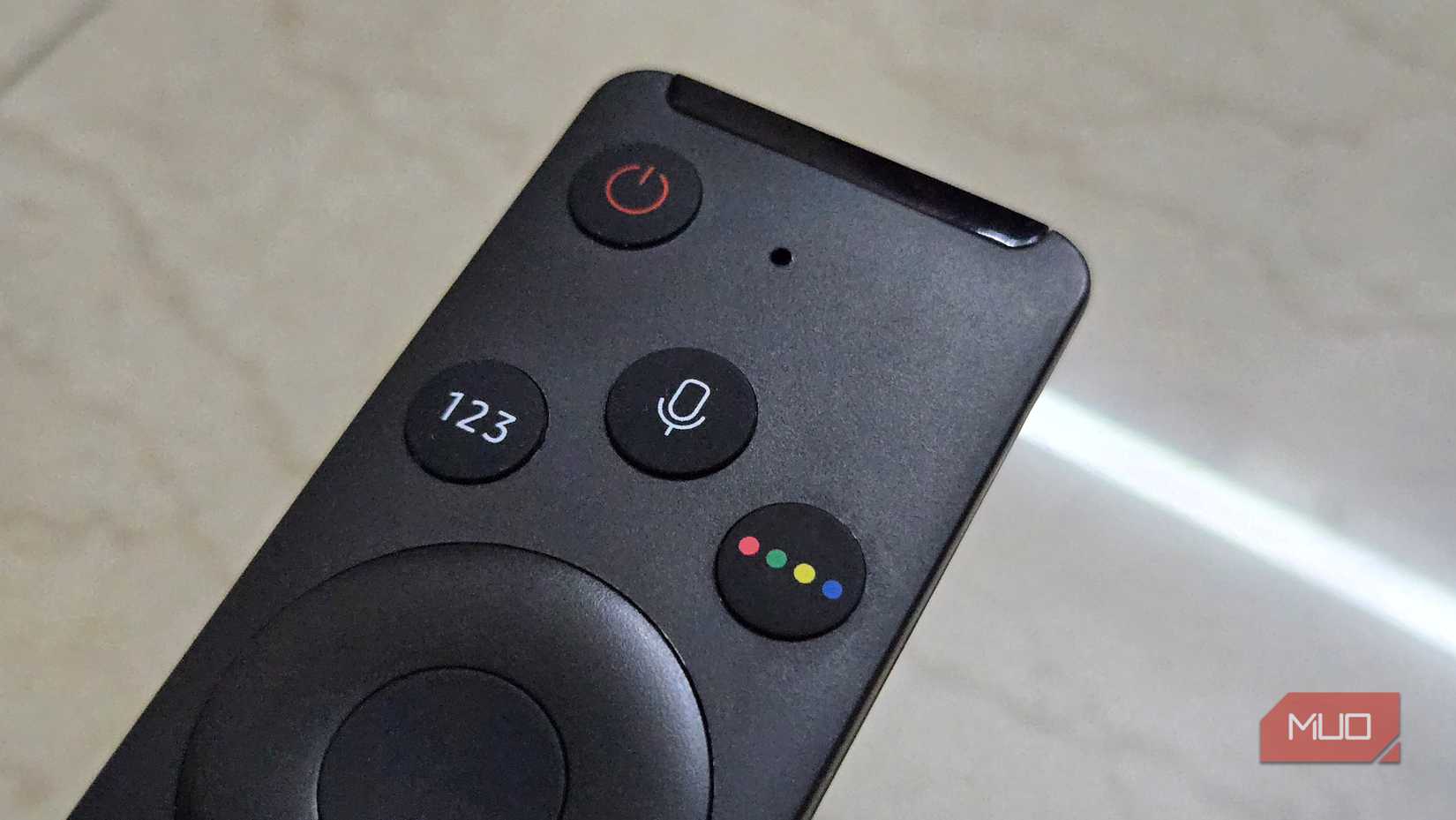
YouTube search has become frustratingly unreliable, and typing out queries on a TV remote only makes it worse. The on-screen keyboard is slow and often takes a good amount of time to get used to.
Thankfully, most Smart TVs offer a dedicated mic button on their remote, which you can use to search YouTube without typing. With the YouTube app open, press and hold the Mic button on your remote and then speak your search term. Say “nature documentaries” to find calming videos for a lazy evening, or “Ms Rachel” to pull up educational content for your kids, and your TV will do the rest.
Another advantage of using voice search is that you can speak your search term without exiting the video you are currently watching. On my Samsung TV, YouTube shows the video recommendations related to my search query as an overlay on top of the current video. Nice touch.
YouTube doesn’t offer its Take a Break reminder on the Smart TV app, but you can use your TV’s built-in timer instead. Press and hold the mic button on your remote and say “Set timer for 30 minutes” or “Turn off TV after 30 minutes,” and your TV will handle the rest.
Turn off Autoplay
Stop videos from playing on their own

YouTube wants you to spend as much time as you can watching videos on its platform, so it enables Autoplay by default. With Autoplay turned on, YouTube automatically plays the next recommended video after a few seconds of pause. Ironically, YouTube also offers a take a break reminder function on a phone to remind you that you have been watching videos for too long, but that’s a discussion for another day.
The problem with Autoplay is that you lose control over what plays next. I have had it start videos I had no interest in while I was away, grabbing a snack. It can also lead to unintended data usage if you’re on a metered connection. To turn off Autoplay, go to Settings from the left sidebar, then choose Autoplay next video from the side panel, highlight Off, and press the Select button to disable it.
Join the conversation without typing

Even if you never leave comments yourself, there’s something satisfying about reading what others have to say. Comments give you a preview of whether a video is worth your time, help you spot details you might have missed, and sometimes, the banter in the comment section is more entertaining than the video itself. It’s that quick validation and sense of community that keeps people scrolling through comments even when they have no intention of participating.
To read comments on the TV app while watching a video, press the Select button on your remote to bring up the playback controls. Then highlight and select the Comments icon. The comment section will appear as an overlay and allow you to scroll through reactions without leaving the video. It’s not as convenient as on mobile, but it works well enough when you want to see what others thought about the video.
Set the default video quality
Get sharper videos on your big screen
While a lower resolution video will always load faster, it ruins the video-watching experience on a TV that usually ranges from 43 inches to 65 inches and above. By default, YouTube often sets the video quality to 1080p resolution in its Auto mode, which is decent, but if your internet allows for high-resolution video streaming, why not make the most out of your 4K display?
When watching a video, press the Select button, then highlight and select Settings, and choose Quality. Now choose from the available options. The available resolutions depend on the maximum quality the original video was uploaded in. Most content from popular creators supports 4K these days, and the difference in quality is immediately noticeable on a big screen.
Add videos to Watch Later
Save interesting finds for another time

Most videos I have added to my Watch Later playlist are never watched, but if you find a video that looks interesting but can’t watch immediately, the YouTube app on your TV has a handy Watch Later option. It’s perfect when you’re browsing before bed and spot something you want to see over the weekend.
On the home or search page, highlight the video thumbnail that you want to save for later and press and hold the Select button for a few seconds to bring up the context menu. Now choose Save to Watch Later, and that’s it. The video will appear in your Watch Later playlist, accessible from the Library section in the left sidebar whenever you’re ready.
A better YouTube experience on the big screen
These tweaks take just a few minutes to set up, but they make a noticeable difference in how I use YouTube on my TV. Voice search is my favorite because it solves the issue of pecking at that on-screen keyboard. Turning off Autoplay is something I highly recommend to stop YouTube from ruining your watch history as well as video preferences.
The YouTube TV app isn’t as feature-rich as the mobile version, but once you know where to look, it gets the job done. If you’re spending most of your YouTube time on the big screen like I am, these small changes add up to a much smoother experience.
