 Skip to content

Pankil is a Civil Engineer turned freelance writer from Ahmedabad, India. As a long-time Windows and Android user, he has extensive knowledge of both operating systems and specializes in creating how-tos and troubleshooting guides.
Pankil has been writing about Windows, Android, and iOS since 2021. He has written over 1200 articles across reputable publications like MakeUseOf, GuidingTech, and TechWiser.
Outside of his writing endeavors, Pankil is an avid football fan and loves to plan his international travels with his wife in his free time.
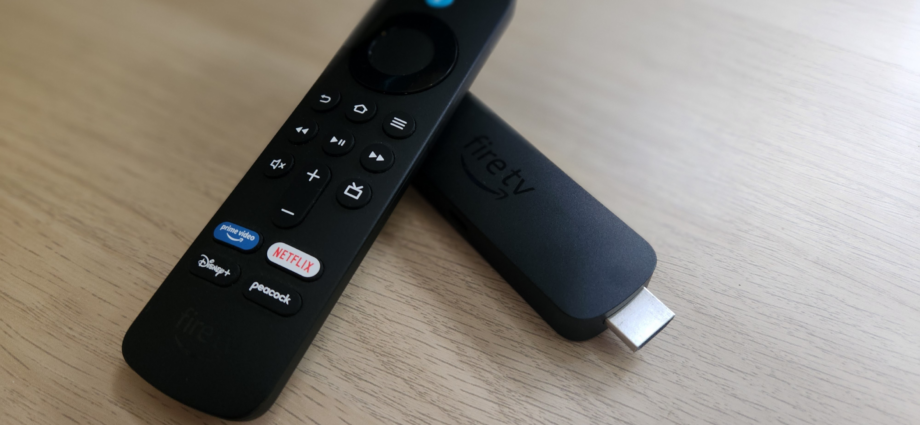
Streaming devices aren’t meant to last forever, and your Fire TV Stick is no different. But that doesn’t mean you have to replace it the moment things start feeling slow. In most cases, it’s the cache buildup, unused apps, and outdated software that’s responsible for the slowdown rather than the hardware.
Thankfully, a bit of optimization is all it takes to make your old Fire TV Stick run like new again. And the good news is doing this doesn’t take much time or effort.
Clear the cache
A quick cleanup to speed things up

Every app you use on your Fire TV Stick stores temporary data called cache. This way, the app doesn’t need to load the same thumbnails, icons, and other bits of data every time you open it. So yes, cache actually helps your apps load quickly.
Over time, though, this cached data can balloon into hundreds of megabytes and end up slowing things down instead. This can also cause apps to freeze, stutter, or crash randomly. An easy way to fix this is to simply clear the cache on your Fire TV. Even better, Fire TV lets you clear the cache of all the installed apps at once.
Head to Settings > Applications > Clear all Application Caches and hit Confirm. Don’t worry, this won’t log you out or erase your settings. Clearing the cache only wipes out temporary files apps have collected.
Uninstall unwanted apps
It’s time to remove the dead weight

If you’ve been using your Fire TV Stick for a while, it’s probably filled with apps you don’t even touch. It could be a streaming service you no longer subscribe to, a game you played once, or a sideloaded app that’s no longer useful. These apps not only occupy storage but can also use the available RAM. And since Fire TV Stick comes with limited storage and RAM to begin with, those unused apps can affect the performance more than you’d expect.
One way to avoid that is by simply uninstalling apps you no longer use. Go to Settings > Applications > Manage Installed Applications and scroll through the list. Select any app you haven’t used in weeks and choose Uninstall. Repeat this for all the unused apps and then restart your Fire TV Stick.
Turn off data monitoring and tracking
Stop Amazon from spying on you
Your Fire TV Stick does more than just stream movies and TV shows. By default, it collects all kinds of data about how you use the device. That includes which apps you use, what settings you prefer, and how you interact with the device. All these things, of course, use system resources in the background without really benefiting you in any way. More importantly, the data collection is also a little too much from a privacy standpoint.
The good thing is you can opt out and disable most of the data collection and tracking. Go to Settings > Preferences > Data Usage Monitoring and turn off Data Usage Monitoring. Then, return to the Preferences menu, go to Privacy Settings. From there, turn off Device Usage Data, Collect App Usage Data, and Interest-based Ads.
Doing this will reduce unwanted background activity and free up resources for apps you’re actually using.
Stop autoplay on homescreen
They’re not useful anyway

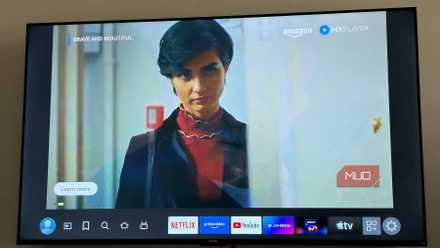
One of the most annoying things about the Fire TV Stick home screen is how those trailers and ads autoplay any time you scroll past them. Besides being distracting, these autoplay previews also eat up bandwidth, storage, and RAM. On your Fire TV Stick, all that extra activity can make the interface feel sluggish.
If you don’t find them helpful anyway, turning them off can make the interface feel calmer and smoother. Go to Settings > Preferences > Featured Content and turn off both Allow Video Autoplay and Allow Audio Autoplay. It’s a small thing, but still worth doing if you want to make the Fire TV Stick as responsive as possible.
Install pending updates
No point in ignoring them

This is one of the simplest fixes out there and also the one most people ignore. Besides new features, software updates usually bring bug fixes and performance improvements. When you ignore these updates, you’re basically missing out on all the improvements Amazon has made on the Fire TV Stick.
Head to Settings > My Fire TV > About > Check for Updates. If an update is available, download and install it. Updating apps is just as important. Just like your Fire TV Stick, they also receive regular updates that improve performance. And sometimes, an outdated app can be the reason your Fire TV Stick feels slow or unstable.
To update apps on your Fire TV Stick, head to Applications > Appstore and turn on Automatic Updates. That’s it. Appstore will now update apps automatically whenever a newer version is available.
Most of the time, the above tweaks should be enough to make your old Fire TV Stick feel smooth and responsive again. But if not, a factory reset may be your best bet. Yes, that means setting everything from scratch again, but it’ll definitely fix any lag or slowness.

Fire TV Stick 4K Max.
- Dimensions
-
1.5 x 5.6 x 0.6 inches
- Connective Technology
-
HDMI
- Brand
-
Amazon
- What’s Included
-
Two-year protection plan
