 Skip to content

Afam’s experience in tech publishing dates back to 2018, when he worked for Make Tech Easier. Over the years, he has built a reputation for publishing high-quality guides, reviews, tips, and explainer articles, covering Windows, Linux, and open source tools. His work has been featured on top websites, including Technical Ustad, Windows Report, Guiding Tech, Alphr, and Next of Windows.
He holds a first degree in Computer Science and is a strong advocate for data privacy and security, with several tips, videos, and tutorials on the subject published on the Fuzo Tech YouTube channel.
When he is not working, he loves to spend time with his family, cycling, or tending to his garden.
I put one of my favorite soccer websites on my NextDNS deny list and, as expected, Windows could no longer resolve the domain normally. But when I opened Chrome and flipped just one setting, the browser loaded the site as if the block had never existed.
Out of curiosity, I tried this experiment in Edge and Firefox and got identical results. You may have set up DNS filtering to keep ads, trackers, or certain sites off your network, but it doesn’t guarantee your browser will respect it. One 15-second check may reveal this behavior.
The silent log
One toggle, one PC, two completely different outcomes
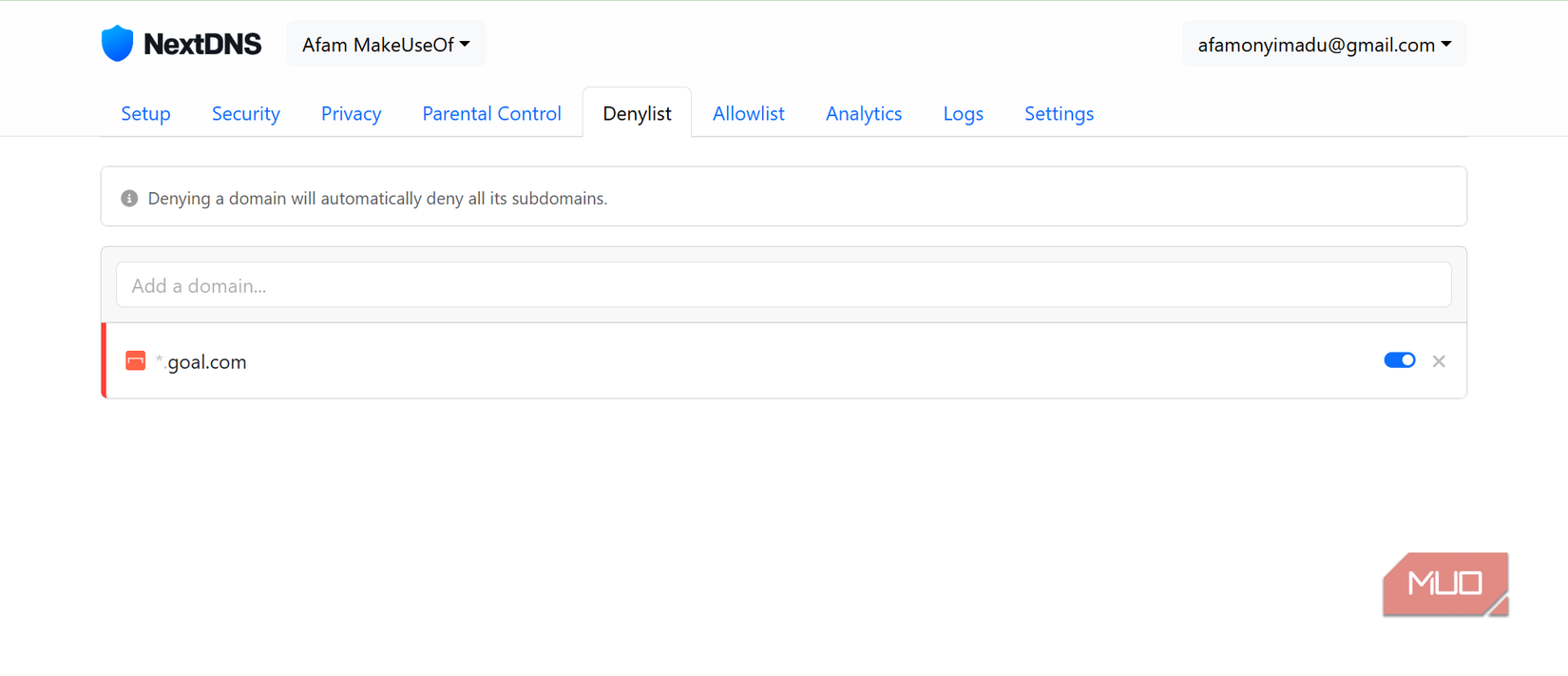
I needed to run my test on a clean baseline. So I added goal.com to the deny list of NextDNS, my DNS filtering and security service, and instantly I could no longer resolve goal.com normally. The DNS lookup for goal.com was returning 0.0.0.0. I confirmed this by checking the NextDNS logs, which showed the requests were blocked, as expected.
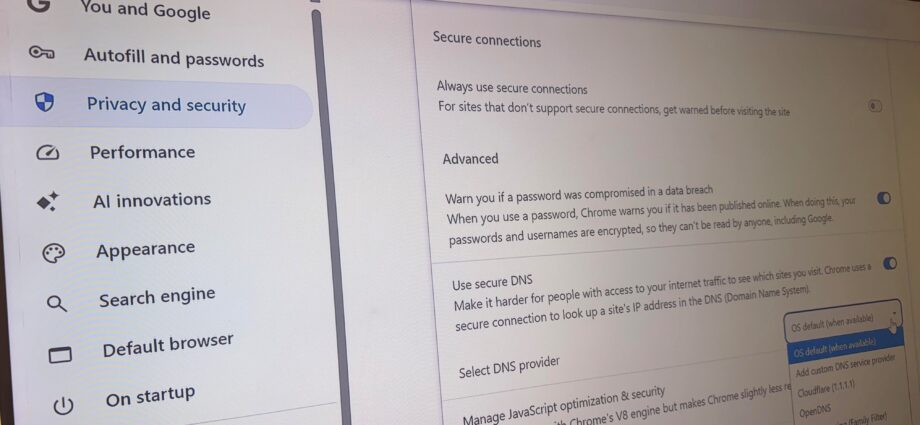
Then I opened Chrome and navigated to chrome://settings/security, selected an external DNS provider, Google (Public DNS), and reloaded the goal.com page. It loaded as if NextDNS hadn’t blocked it.
When I checked the NextDNS logs, there was no blocked entry, and in fact, no entry at all. The filter acted like it didn’t know that request ever existed.
So I tried the same sequence on Edge and Firefox, and the results were identical:
|
Browser |
Secure DNS using an external provider |
Secure DNS off |
|---|---|---|
|
Chrome |
Loads, no log entry |
Blocked, entry appears |
|
Edge |
Loads, no log entry |
Blocked, entry appears |
|
Firefox |
Loads, no log entry |
Blocked, entry appears |
Switching off Use secure DNS or setting Select DNS provider to OS default (when available) brought back the block instantly.
The test showed that the browser can resolve a domain without consulting my DNS filter when Secure DNS is configured to use an external resolver. I’m not saying other network controls can’t block access; firewall rules or IP-based blocks might still apply. This is a narrow but effective bypass.
The side door
How the browser stopped using your network’s DNS
The request path when Secure DNS is disabled looks like this: Browser → Windows DNS → NextDNS → blocked.
When it’s enabled, it looks like this: Browser → external DoH resolver → DNS response.
When a browser uses the system’s DNS resolver, the domain lookup eventually reaches the resolver configured for your system. That’s where a DNS filter like mine can apply its rules. Once Secure DNS is set to an outside provider, that handoff no longer happens in most browsers, including Chrome, Firefox, and Edge, which I tested.
In these cases, the browser sends the DNS lookup through an encrypted DoH (DNS-over-HTTPS) connection to the resolver configured in its Secure DNS settings. So, while the connection was still there, the browser simply stopped asking my filter.
By design, it isn’t sneaky. One goal of encrypted DNS is to prevent your ISP or someone running a public Wi-Fi network from seeing your DNS lookups in plaintext. It’s a fair goal, but it also sidesteps filters that rely on seeing those DNS lookups.
In my case, the filter ran on my PC. But since Mozilla documents that DNS-over-HTTPS can bypass network or local DNS filtering, it probably will apply to other setups.
Firefox has safeguards that can disable DoH in some network configurations.
Every browser, different door
Chrome, Edge, and Firefox each take their own route
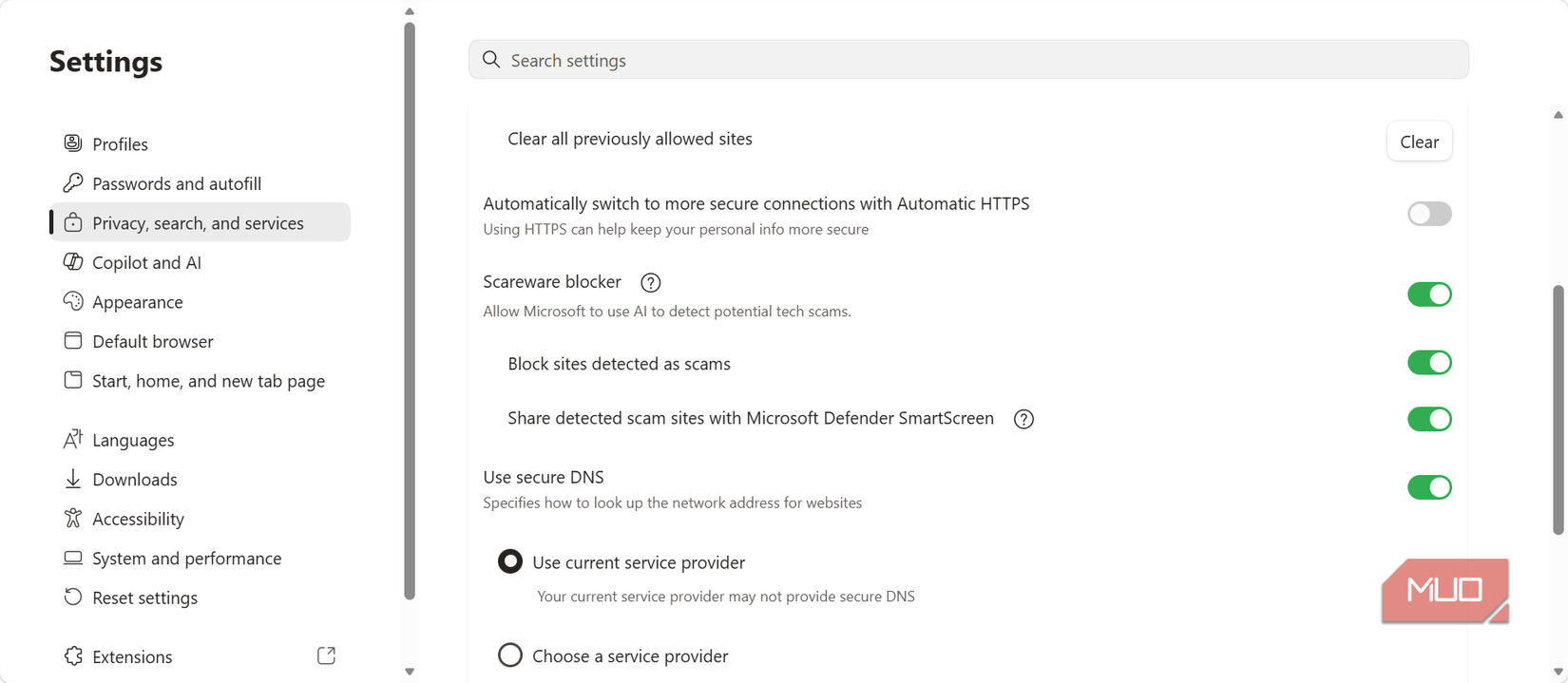
On Chrome and Edge, it’s called Secure DNS. Brave runs on the same engine and also calls it Secure DNS.
In Chrome and Edge, you get the full bypass by choosing a provider yourself, just like I did. In automatic mode, both Chrome and Edge can fall back to the system’s regular DNS if the secure lookup fails. Choosing a specific Secure DNS provider removes that fallback.
It works slightly differently on Firefox. Default protection mode may disable DoH if it detects parental controls or network signals requiring it not to use secure DNS. I select Custom protection to choose the resolver and keep secure DNS active. I can take it a step further by selecting Max protection, which makes Firefox strictly refuse to fall back to the system DNS even when a secure connection is unreachable.
The important two-minute check
Even if you don’t have my exact setup, you can still check who actually answered your browser. Open your filter’s query log and load any site you haven’t visited in that browser. Use a domain you haven’t recently visited in that browser, because if you get a response from the cache, a working setup may look broken.
You know the DNS filter applied the rule and is doing its job if the query shows up as blocked. If it shows up as allowed, the DNS filter saw the lookup but didn’t block it. When it never appears in the filter’s logs while the page loads, that’s strong evidence that this browser didn’t use that DNS filter for the lookup.
The route would change if you toggle Secure DNS and load a new domain. But your next steps should be guided by what you actually want. You may turn the setting off or point the browser’s Secure DNS setting to your filter’s encrypted DNS endpoint (if it provides one) if you want filtering. On the other hand, you leave the DNS decisions outside your filter to prioritize privacy.
However, the point is that you don’t have to rebuild your network just because one browser ignores your filter. It’s more important to first find out who is answering its DNS queries.
