 Skip to content
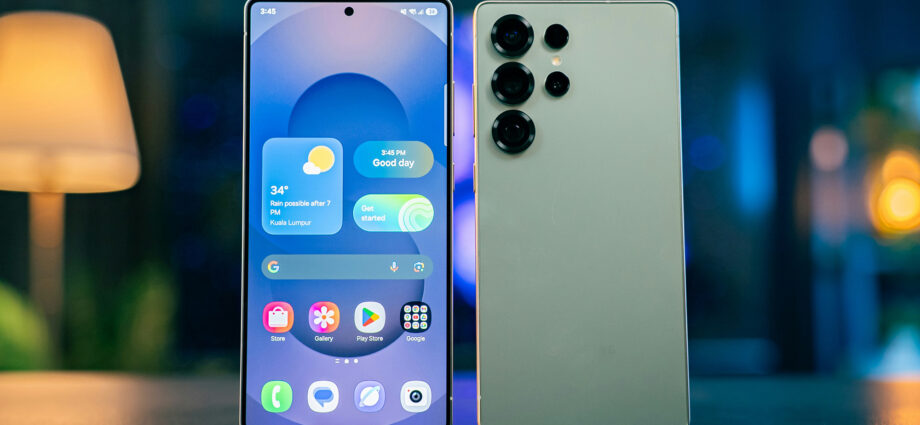
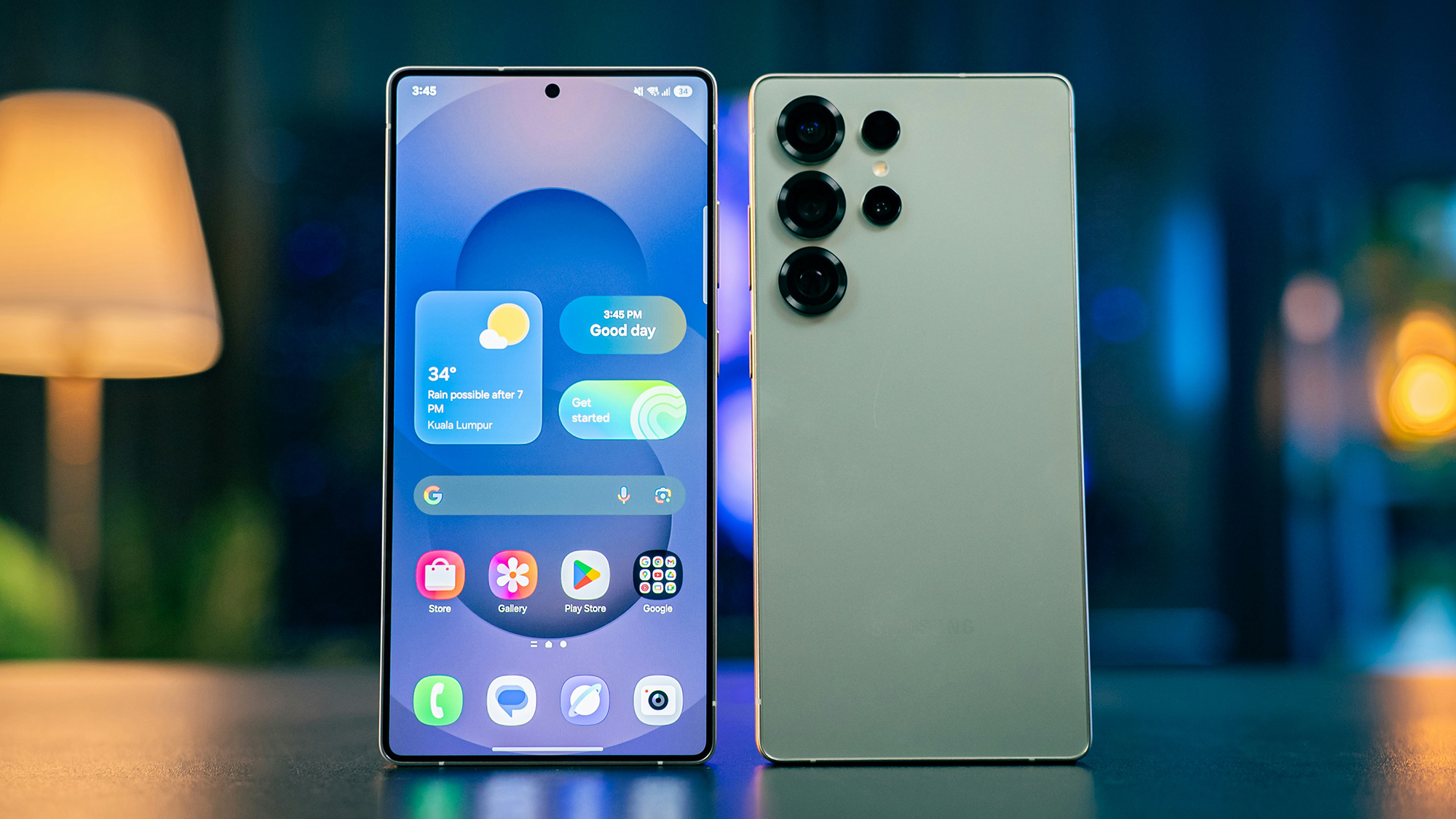
You can make a phone feel like new, without it actually being new.
Image: Amanz/Unsplash
Get the Popular Science daily newsletter💡
Breakthroughs, discoveries, and DIY tips sent six days a week.
No matter how snappy your smartphone feels when you first buy it, it will inevitably slow down over time. When that happens, you have to decide when it’s time to upgrade.
Eventually, an upgrade becomes necessary—especially once your phone stops receiving software updates and becomes more vulnerable to security issues. But you can often delay that moment longer than you might think.
If you’d rather avoid the cost of a new phone and get more life out of your current one, try these steps on your device and see how much they help.
Remove and limit apps
When your phone gets cluttered with too many apps, it starts to impact performance. Getting rid of apps you don’t frequently use can make a difference. Do an audit of what’s on your phone and see how many apps on your device are gathering digital dust. Note that you can always reinstall them later or use the web versions.
If you’re on Android, tap and hold on an app shortcut, then drag it up to the Uninstall button at the top. On the confirmation dialog, tap Uninstall. If you’re on iOS, tap and hold on an app icon in the App Library, then choose Delete App and Delete to confirm.
There are also ways you can limit apps from running in the background, and affecting performance when they’re not actively in use. On Android, open up Settings and choose Apps > See all apps and pick an app. Tap App battery usage, and there’s an Allow background usage toggle switch you can turn off.
iOS offers something similar. Open Settings then tap General > Background App Refresh—you then get a list of all the apps installed on the iPhone, and you can turn off the toggle switches for the apps you don’t want running in the background.
Boost storage space
The more free space that your phone has available, the happier it’ll be, and the faster the performance you’ll see. Removing apps will free up some room, but you can go further.
Android comes with a built-in Files app that will help you clear some room without too much fuss. Tap the menu button (three lines, top left), then pick Clean, and you’ll see some suggestions for what you might want to delete—including duplicate files, screenshots, and the largest files currently on your device.
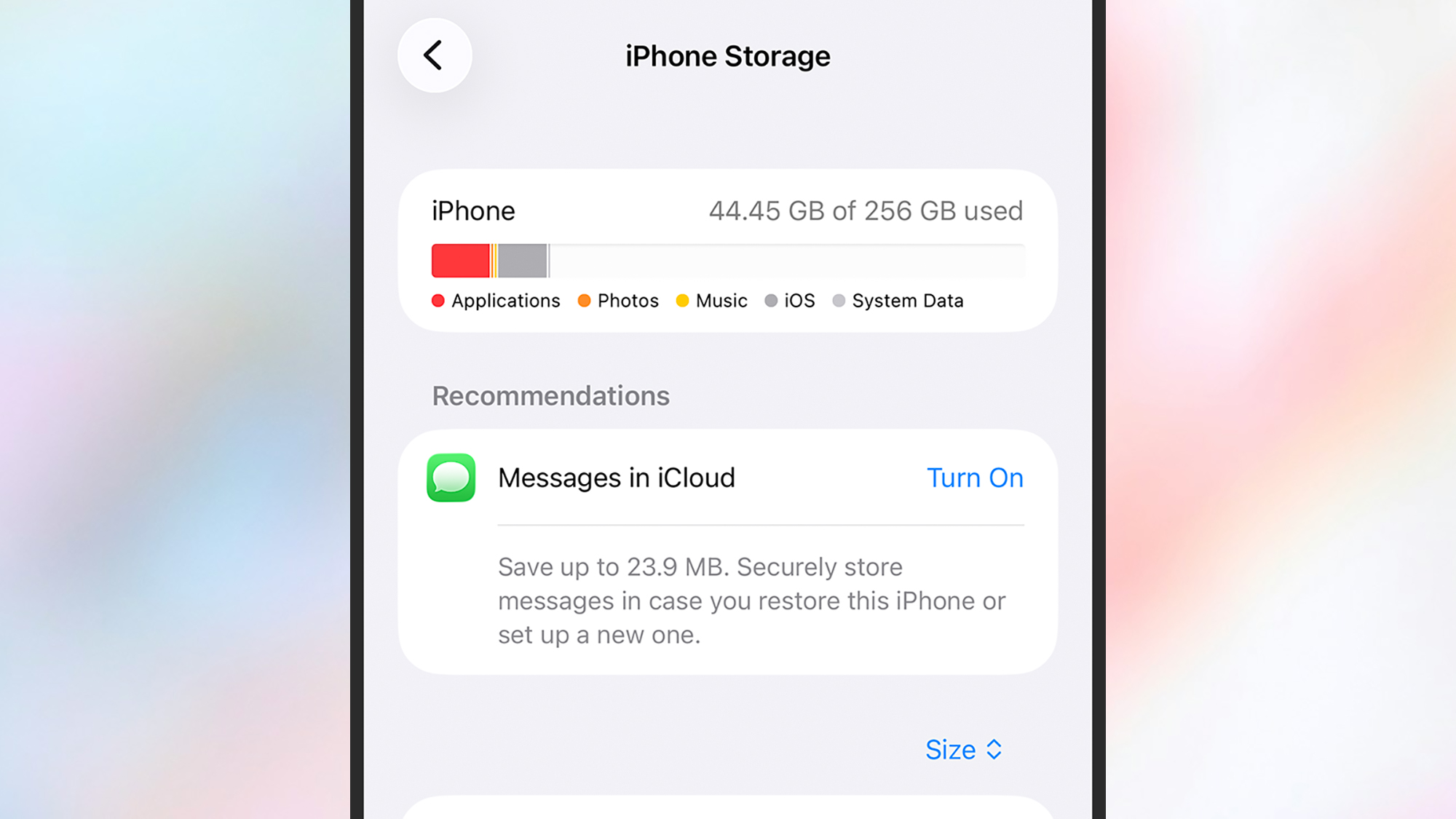
Over on the iPhone, if you open Settings and choose General > iPhone Storage, you’ll see a breakdown of where all the storage space on your phone is being used up, together with some suggestions about how to free up room. These suggestions may include large apps and files that can be safely offloaded to the cloud.
If you have a Samsung Galaxy phone, there’s another check you can make. From Settings, choose Device care > Memory > RAM Plus. This feature uses part of your phone’s storage as temporary memory, so if you disable it then you can claim that storage back.
Perform a full reset
This is the most drastic of the measures you can take, and will reset your phone back to something like the state it was in when you first unboxed it. A full reset actually doesn’t take long, and it’s actually easier to go through this process than it was a few years ago.
Everything on your phone will be wiped, so in one action you’ll remove all of the extraneous apps you weren’t using and free up as much local storage space as possible. You’ll be starting again from scratch with your phone and should notice benefits in terms of the device performance.
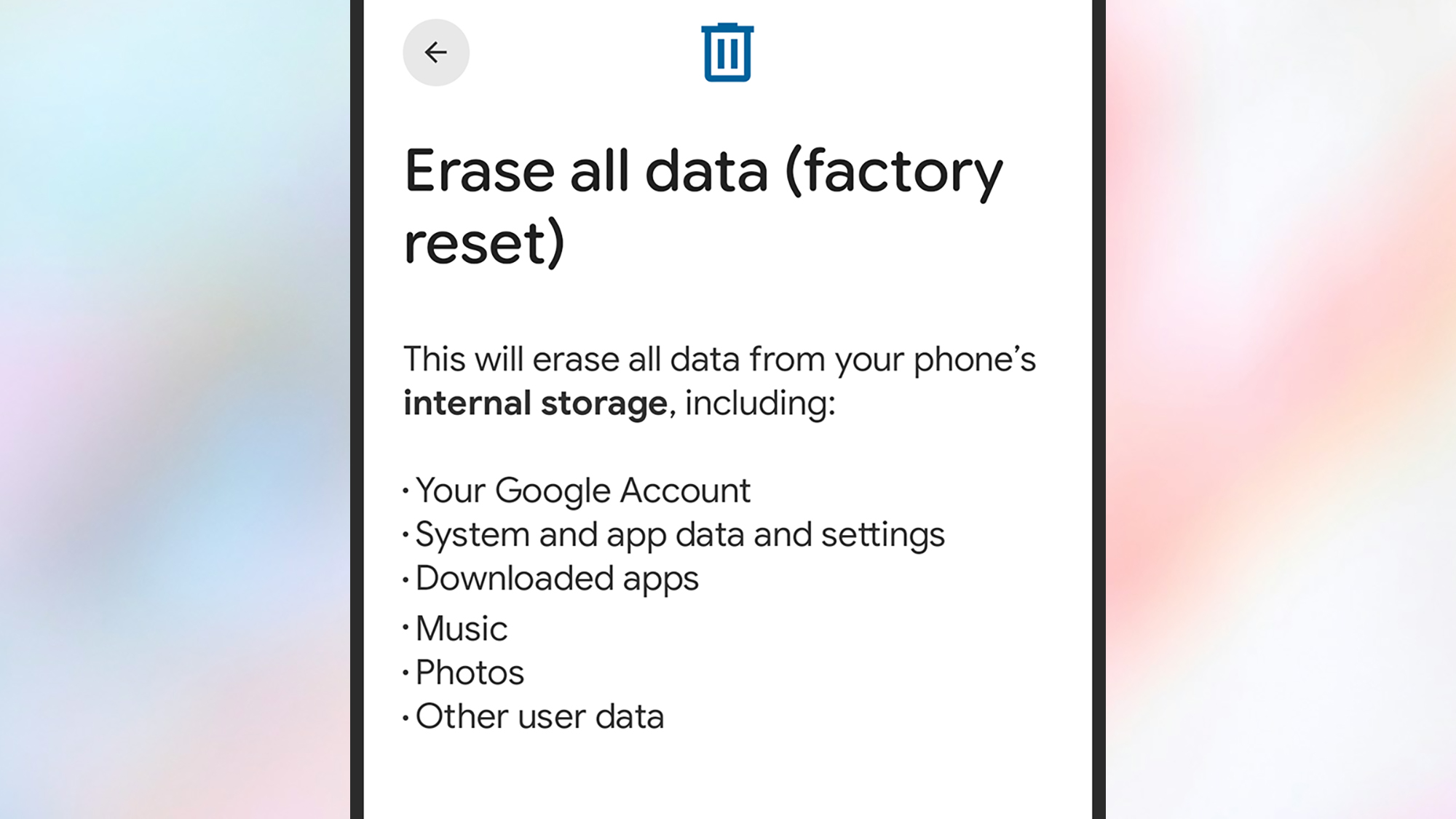
The key step you need to take before doing this is making sure everything on your phone is safely backed up, whether it’s in Google Drive, iCloud, or somewhere else. Check and double-check all your photos, videos, and other files are safely stored in the cloud before you go through with the reset process.
When you’re ready to reset on an Android device, you need to open up Settings and choose System > Reset options > Erase all data (factory reset) > Erase all data. For iPhones, the option you want from Settings is Transfer or Reset iPhone > Erase All Content and Settings > Continue.

2025 PopSci Best of What’s New
The 50 most important innovations of the year
