 Skip to content

Dave has a bachelor of arts degree in journalism, and has been writing professionally since 2006. Over the years he’s produced content for many global brands, including IGN, PC Gamer, TechRadar and Tom’s Guide. His main passions revolve around PC hardware, display tech and gaming.
Dave is absolutely obsessed with cutting-edge PC technology. He’s been building his own rigs since ye olden days of 2004 and has owned an embarrassing number of GPUs over that timeframe.
When he’s not obsessing over frame rates, Dave can normally be found fretting over dead pixels and OLED burn-in. He first fell in love with OLED displays in 2015, and has spent the ensuing years obliterating his bank balance buying “Light Emitting Diode” screens.
In his off hours, Dave can normally be found sweating unbearably over Arsenal results. He might take footba… sorry “soccer”, a little too seriously.
Do you know how much I like the PlayStation Portal? Enough to keep it for a whole four days before returning Sony’s remote streaming device. Though its DualSense-aping ergonomics are excellent, its lousy LCD screen means I couldn’t justify keeping the expensive, first-party accessory.
Sending back the PS Portal has proven to be an even better decision in hindsight, after I recently discovered I could transform my Steam Deck OLED into a portable PlayStation 5. Thanks to one free piece of software that can be installed on the Linux-based handheld in a relatively straightforward fashion, my beloved portable PC can now stream PS5 games in impressive style.
Let me show you how you can install said software, and why it’s absolutely worth setting up if you own both a PS5 and a Steam Deck.

I made the switch to Steam OS on my ROG Ally X and haven’t looked back
Being reunited with SteamOS has never felt better, especially on the ROG Ally X
How to install Chiaki-ng on Steam Deck
The app that transforms Valve’s handheld into a portable PS5
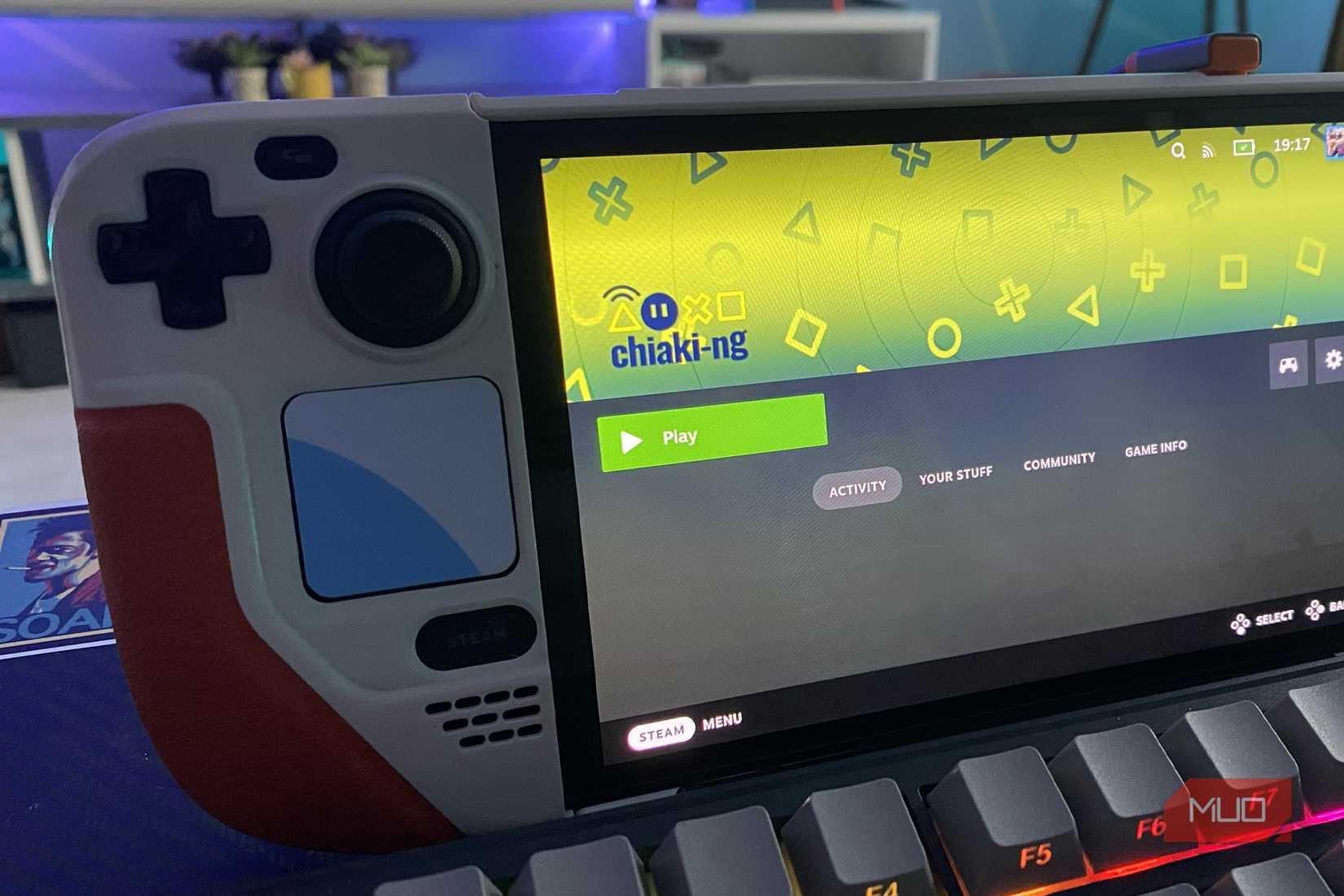
Chiaki-ng is a free open-source remote play client that lets you stream PS5 to a number of Windows and Linux devices, including the Steam Deck. The latest version of the original Chiaki software provides lower input lag and more effective support for HDR content.
Before you download Chiaki onto your Steam Deck, make sure you first know how to set up and use remote play on your PS5. Once you’ve sorted that simple step, you can start streaming PS5 games on your Steam Deck by following the steps below.
- Press the Steam button, then go to Power -> Switch to Desktop.
- Open up the Discover Store (a blue shopping bag in the taskbar).
- Search for Chiaki, then install the software
- Once you open Chiaki, set up your PS5 login details by entering your PlayStation ID.
- Next, turn on your PS5, go to Remote Play -> Link Device, then enter the code that appears on-screen into Chiaki and press register.
- In Chiaki, make sure you click Create Steam Shortcut so that you can access it in your Deck’s Gaming Mode.
- Go back to Gaming Mode, then open Chiaki from the Non-Steam collection tab from your library.
- Hey presto! You can now stream PS5 games on your Steam Deck.
A couple of things to note. To ensure the best possible connection and thus the most responsive streaming experience, make sure your PS5 and Steam Deck are connected to the same Wi-Fi network. Oh, and if you don’t want to risk losing your sanity by using the Deck’s trackpads to navigate Desktop Mode, I highly suggest connecting your handheld to a compatible docking station so that you can more easily pair the tiny Linux machine with a keyboard and mouse.
And if you want a slightly more detailed step-by-step process on the above, here’s how to remote play PS5 games on your Steam Deck.
Better than the PlayStation Portal
Why the Steam Deck OLED beats Sony’s official accessory
I’ve been streaming PS5 games to my Steam Deck for a few weeks now, and I can honestly say I prefer this method to that of playing the likes of Horizon Forbidden West on the PS Portal.
While the experience is far from flawless, in my book, using Chiaki-ng to take advantage of the PS5’s remote play features beats Sony’s accessory all day long. The main reason I say that? The Steam Deck OLED’s incredibly vivid screen is simply far superior to that of the Portal’s.
Steam Deck
- Brand
-
Valve
- Screen
-
7-inch touchscreen (1280 x 800, 16:10)
- Processing Power
-
AMD RDNA 2 with 8 Compute Units, up to 1.6 GHz
- CPU
-
AMD Zen 2: 2.43.5 GHz
- Battery
-
40 Wh, 5-8 hours
- Connectivity
-
Wi-Fi, Bluetooth, USB-C, 3.5 mm audio
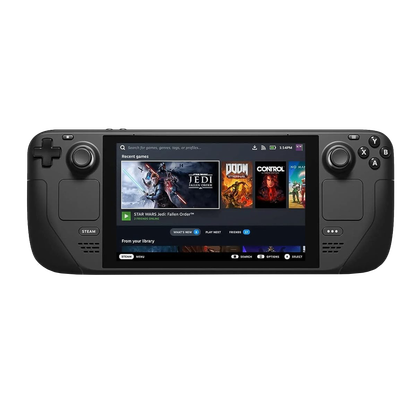
Steam Deck is a portable PC gaming handheld that runs your Steam library on the go, offering a 7″ touchscreen, high-performance AMD chipset, and built-in controls. It supports full PC games, customizable settings, and optional external display output — delivering console-like convenience with PC-level flexibility.
Though its 7.4-inch, 720p panel is smaller and boasts fewer pixels than the Portal’s 8-inch, 1080p display, there’s no question the Steam Deck’s screen is vastly better. That’s because OLED technology continues to slap seven shades of snot out of LCD.
In terms of the actual PS5 remote play experience on Steam Deck vs. PlayStation Portal, the results are broadly similar. Providing you’re streaming on a strong Wi-Fi connection, input lag is pleasingly low, while image quality is decent. Sure, there’s some video artifacting that is visible if you squint closely, but on a small screen this issue is far from a deal-breaker.
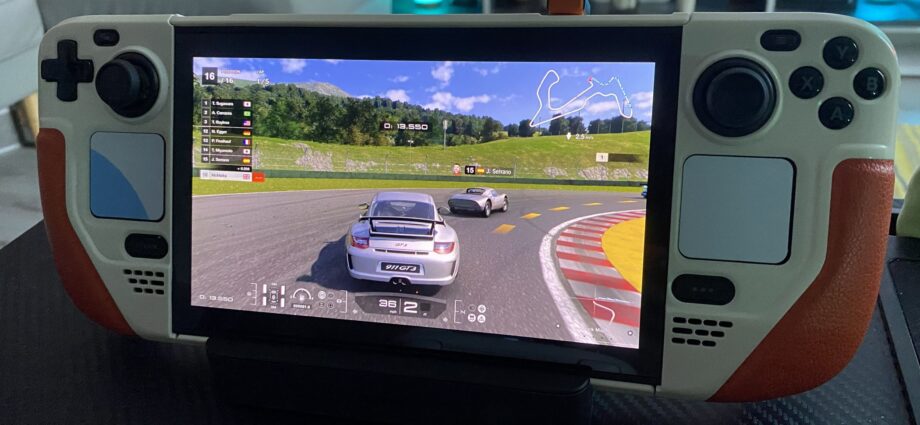
Streaming Ghost of Tsushima, the PS4 remake of Shadow of the Colossus, God of War Ragnarökand Gran Turismo 7 via Chiaki-ng on the Steam Deck OLED’s gorgeous screen has been an absolute pleasure. For those times when I want to watch TV while also messing around with my favorite PlayStation games, this open-source software has turned my Deck into an unlikely, but super-welcome portable PS5.
And on the subject of remote play on Valve’s handheld, here’s how to use Steam Deck Remote Play to stream games from your PC.
The Steam Deck makes for a surprisingly good portable PS5
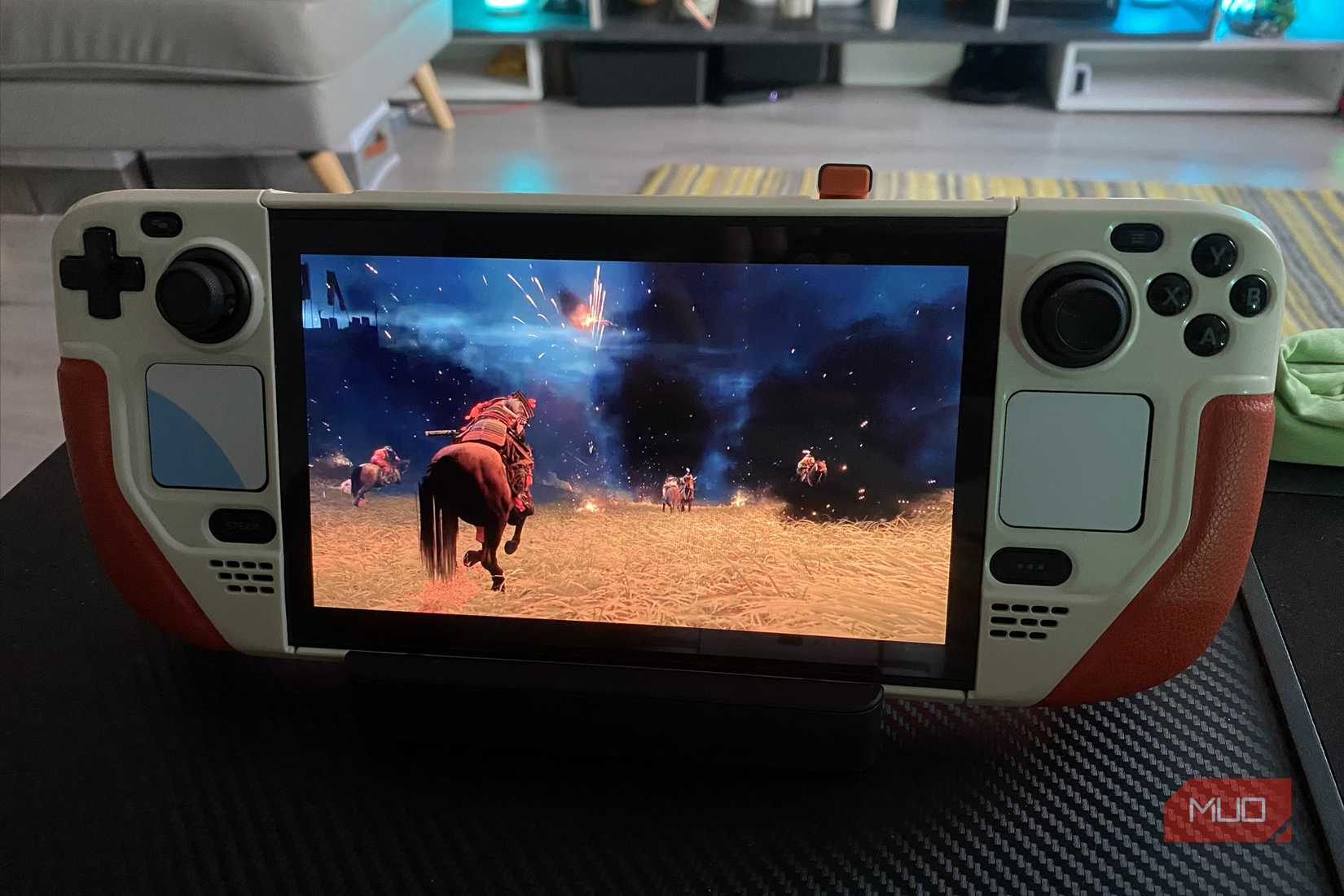
Prior to discovering I could transform my Steam Deck into a portable PC via one super-useful piece of software, Valve’s teeny PC had been gathering dust in my front room for months. Now that I’ve stumbled upon the joys of playing Astro Bot on my handheld’s glorious OLED screen, I’m using my Deck on a daily basis once again.
If you are lucky enough to own both a Steam Deck and PS5, and don’t mind going through a slightly fiddly installation process, I urge you to stream your favorite PlayStation games on Valve’s breakout, palm-friendly device. For all you Deck owners, there’s no reason to waste money on a PlayStation Portal thanks to Chiaki-ng.
