 Skip to content

Tashreef’s fascination with consumer technology began in the school library when he stumbled upon a tech magazine, CHIP, which ultimately inspired him to pursue a degree in Computer Science. Since 2012, Tashreef has professionally authored over a thousand how-to articles, contributing to Windows Report and How-To Geek. He currently focuses on Microsoft Windows content at MakeUseOf, which he has been using since 2007.
With hands-on experience building websites and technology blogs, he brings practical developer insights to his technical writing. You can view his complete work portfolio at itashreef.com.
You might also stumble upon his short how-to video explainers, simplifying complex topics. Beyond writing, Tashreef enjoys creating short explainer videos, gaming, and exploring animated shows.
I rarely use my USB drives to move data these days. However, all the USB sticks in my drawer have something important on them. One acts as a rescue disk, another works as a portable PC with Tails OS, and one carries my portable password vault that works entirely offline.
A bootable drive can save a computer that won’t start
Turn a USB into a multi-tool rescue kit with Ventoy

When a PC refuses to boot, built-in recovery options are usually the first things that stop working. Windows Startup Repair can’t help when Windows itself is the problem, and you can’t download a fix for a machine that won’t reach the desktop. That’s why keeping a rescue USB ready at all times can come in handy.
To create my rescue USB, I use Ventoy, a free, open-source utility that turns any USB drive into a multi-boot device. You install it once, and after that, you copy ISO files onto the drive like regular files. And when you boot from the USB, Ventoy shows a menu with every ISO on the drive and lets you pick which one to run.
I keep a Windows 11 installer, a lightweight Linux live environment, and a couple of diagnostic tools on mine. The Windows ISO gives me access to the Recovery Environment for running Startup Repair, System Restore, or commands like chkdsk and sfc /scannow when the main installation is broken. Similarly, the Linux ISO handles things Windows can’t touch, like recovering files from a corrupted NTFS partition or running disk utilities when the Windows bootloader is dead.
What makes Ventoy so useful compared to tools like Rufus is that Rufus ties your drive to a single ISO, and switching means reformatting the entire thing. With Ventoy, I add or remove ISOs as needed, and the rest of the drive still works as normal storage. A 32GB drive is the minimum I’d recommend, though 64GB gives you room for a full recovery toolkit like Medicat or Hiren’s BootCD PE alongside your installers.
The same stick can carry a full desktop wherever you go
Boot Tails OS for a portable, private computer
A rescue USB fixes broken computers. But a USB drive can also replace a computer entirely, at least for a session.
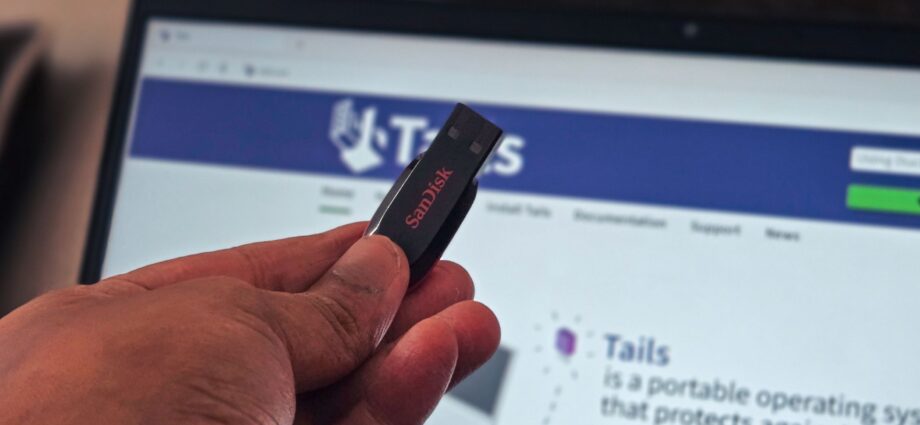
I use Tails OS for this. Tails is a free, Debian-based Linux operating system that runs entirely from a USB stick and routes all your internet traffic through the Tor network. It gained attention when Edward Snowden used it to communicate with journalists during the NSA surveillance leaks, but you don’t need to be a whistleblower to find it useful. I prefer to use it whenever I’m on a public Wi-Fi or using a computer I don’t trust.
To get started, download the disk image from the official Tails website, and use Rufus (don’t use Ventoy for Tails OS) to write it to a USB stick with at least 8GB of storage.
Next time you restart, access the boot menu (usually by pressing Esc or F12 on Windows), and select the USB drive. Tails launches with a clean GNOME desktop, Tor Browser, and a handful of privacy tools already configured.
Since everything runs from RAM, apps open with a slight delay, and browsing is noticeably slower due to Tor routing. By default, nothing survives a reboot. Files, browser history, and downloads all disappear when you shut down, which is the whole point. If you need to save something between sessions, Tails offers encrypted persistent storage on the USB itself, but you have to set that up separately.
Now, you might think you could add Tails to your Ventoy rescue drive and save yourself a USB stick. The Tails developers warn against this for security reasons, so Tails should live on its own dedicated USB.
Your passwords are safer offline than in any browser
Carry an encrypted password vault on your USB with KeePassXC Portable
Browser-saved passwords are convenient, but not very portable. Cloud-based password managers solve this with encryption and sync, but they come with yearly subscriptions and put your vault on someone else’s server.
KeePassXC Portable can turn your USB drive into a portable vault. It runs directly from a USB drive and stores all your passwords in a single encrypted KDBX database file right on the drive. The database is encrypted with AES-256 and unlocked with a master password. You can also add a key file stored separately on the USB as a second factor, so even if someone obtains your master password, they can’t open the vault without that file.
What I like about KeePassXC over vanilla KeePass is that it comes with built-in browser integration and TOTP (two-factor authentication code) support out of the box. Vanilla KeePass requires separate plugins for both of these, and configuring them can take the better part of an hour. KeePassXC has all of it ready from the start, along with a built-in password generator. Even though I’ve been moving to passkeys for most of my accounts, I still rely on KeePassXC for the services that haven’t adopted passkeys yet.
The portable version works exactly like the installed one. Drop the application folder on your USB, create or copy your KDBX database file alongside it, and you have a password vault that works on any Windows PC you plug into. If you sync that database file through Dropbox or a similar service, your passwords stay updated across devices. The total cost is zero, which is hard to argue with when the alternative is $36 or more per year for a cloud-based manager.
Using USB drives beyond storage
The irony of USB drives is that they became more useful once I stopped using them for their original purpose. Cloud storage took over file transfers years ago, but no cloud service can boot a dead PC, run a private operating system, or keep my passwords encrypted on hardware I physically control. Those are jobs that still belong to something you can whip out from your pocket and put back in a drawer when you’re done.
