 Skip to content


Ever since he got his first smartphone, the legendary Nokia 6600, back in 2005, Goran became obsessed with technology. This obsession had only gotten worse after he received his first gaming PC a couple of months later.
He fell in love with video games in the early ’90s, shortly after embarking on his gaming journey with the Sega Master System II and SNES.
Since then, he has built dozens of PCs, played thousands of games, and authored hundreds of articles about PC hardware, gaming hardware, and video games.
He knows everything there is to know about the PC gaming and PC hardware space, and while his console gaming knowledge isn’t as comprehensive, he considers himself a console veteran.
Goran has almost a decade of experience writing about tech and video games for numerous web publications including TechSpot, TechPowerUp, and EsportsHeadlines. He has been writing for How-To Geek since December 2022.
When he isn’t gaming or deciding which component of his PC to upgrade next, you can find him strolling around Novi Sad while listening to music and contemplating what to play next.
Among Microsoft’s efforts to make Windows 11 faster, more reliable, less resource-hungry, more customizable, and less annoying to use is the company’s Windows Search facelift. In the last month or so, Search has gotten much better, as I experienced firsthand, but one decision could spoil all the goodwill Microsoft’s Search redesign has earned and will earn.
Microsoft finally lets you remove web and Microsoft Store results from Windows Search
Disabling them is easy-peasy
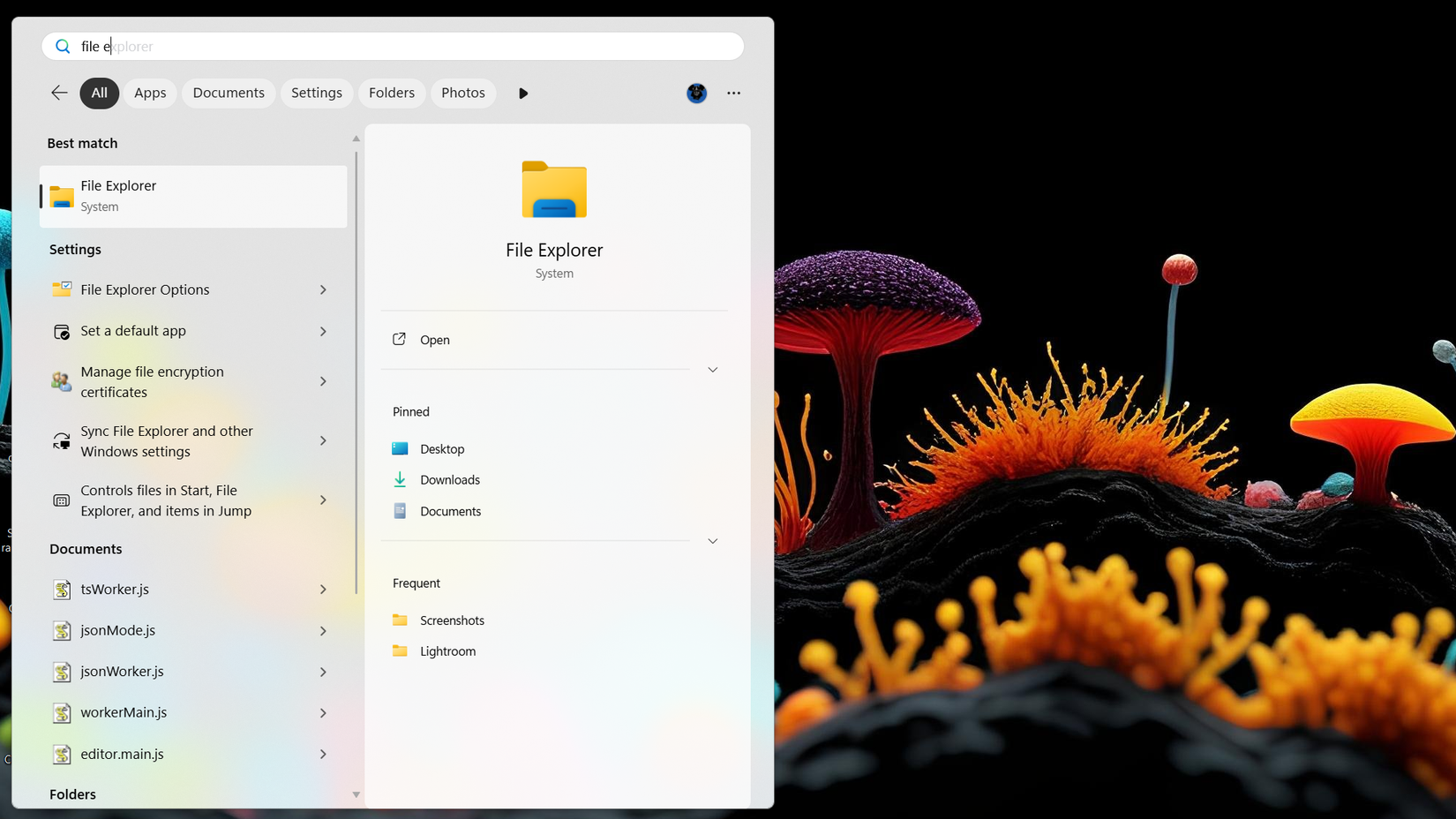
If you’re rocking Windows 11 and keep it regularly updated, you’ve likely gotten the option to disable web and Microsoft Store search results. While I’ve had the former disabled for a good while with a single PowerShell command, I had to live with Microsoft Store results in my searches since said command couldn’t remove them.
I wasn’t the only one annoyed by this unnecessary feature (when I search my Windows PC, I really don’t need online results), and Microsoft listened. At a Windows Insider meetup in early June 2026, the company promised to add an option to disable web results directly in Windows Settings.
Just a few months later, the feature started arriving on Windows PCs worldwide, with Microsoft releasing it in stages. The rollout for people who aren’t Windows Insiders started in late August, and I got it in late October.
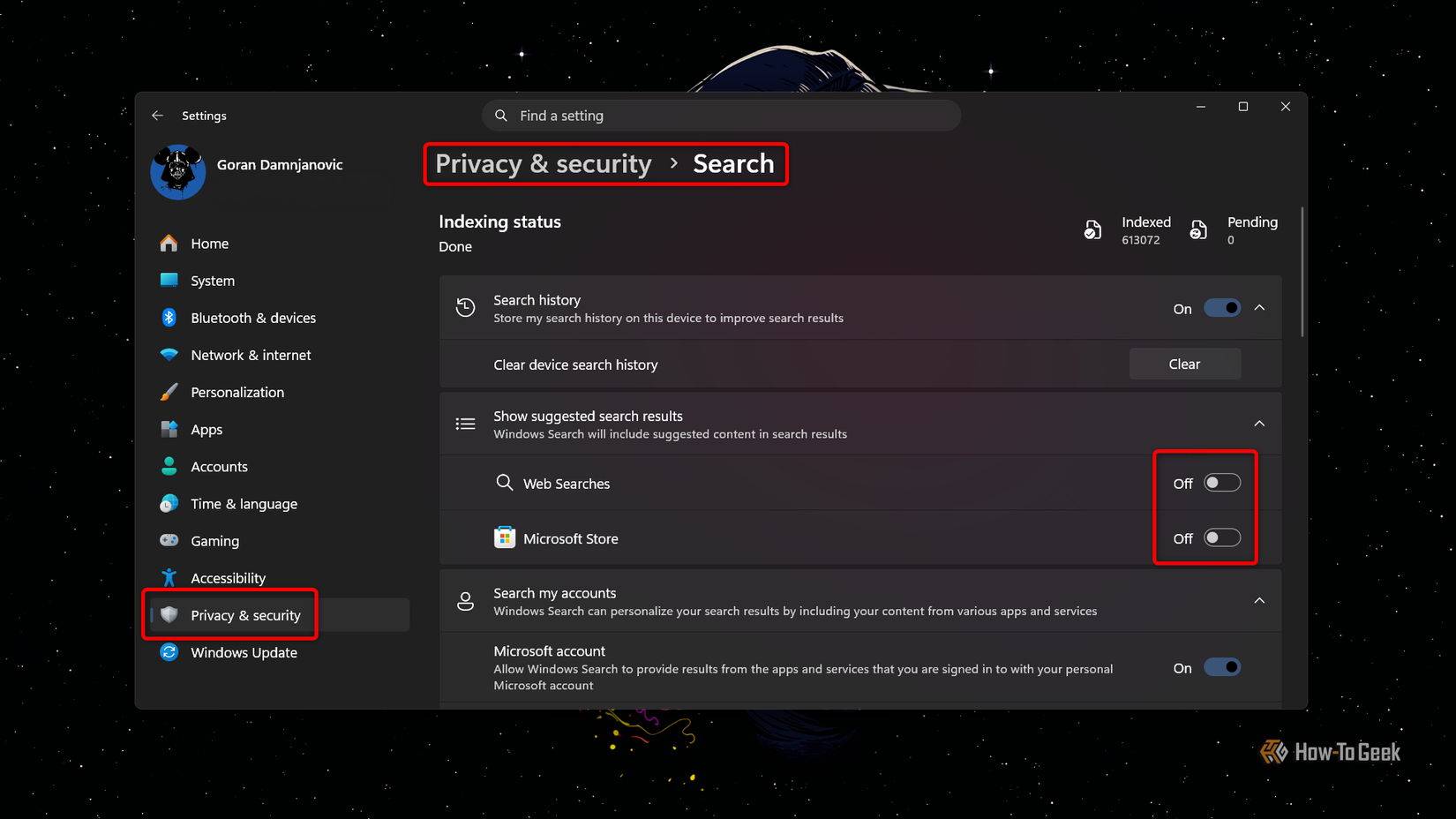
Naturally, I immediately turned off both toggles and have been enjoying searching my Windows PC without annoying Microsoft Store results. You can disable web and Microsoft Store search results in a second. Just open Settings, go to Privacy & security -> Search, and turn off the Web Searches and Microsoft Store toggles.
Windows Search also got a new interface
It’s faster, too, and lets you change settings right inside Search

Just this morning, I also got the completely new Windows Search interface Microsoft announced in early October. Instead of the WebView2-based UI, which ran Microsoft Edge’s web engine in the background, the new Search user interface is built from the ground up on WinUI 3, the native UI framework for Windows desktop applications.
Personally, I’m a fan of the new UI. It appears immediately after you click the Search box and is much more compact than the previous Search UI by default, but it intelligently expands once you start scrolling when there are a lot of results. The only nitpick is that it opens in the center of the screen even if your taskbar is aligned to the left, but Microsoft says it’s working on adapting it to other taskbar positions.
The new Search is included in Windows 11’s KB5132057 update, which started arriving on Windows PCs on November 19. It’s an optional update, so it won’t install automatically unless you’ve turned on Get the latest updates as soon as they’re available in Windows Update.
If your PC has Windows 11 26H2 installed, it should be labeled “2026-11 Preview Update (KB5132057) (26300.10075),” and if you’re still on Windows 11 25H2, the build number at the end should read 26200.10075. The catch is that the new Search is rolling out gradually, so you might not get it right away even if you install the update.
I’ve been testing it for the last couple of hours or so, and I have to say that I’m pleasantly surprised. It’s lightning-fast, able to show the correct results even with multiple typos, and it delivers remarkably fitting results even when you type just a few letters. As you can see below, System Shock was the second result after I typed “sy” (probably because I’ve been playing the game a lot lately), even though there are loads of folders, files, and settings that include “system” in their names.
While this all sounds pretty darn solid, it gets even better. Windows Search now has a new feature called inline actions, which allows you to change a multitude of settings without leaving Search. That said, the feature feels unfinished because I have to type specific phrases for an action to show, which isn’t very intuitive. For example, when I want to adjust sound volume, I have to type either “decrease volume” or “increase volume”; typing “adjust volume” only shows me a shortcut to the Sound settings menu.
But hey, it’s a start, and you have a solid selection of actions you can perform right inside Search. Aside from adjusting sound volume, you can toggle Night Light, lock your PC, toggle Bluetooth, adjust mouse pointer size and speed, and more. Once Microsoft refines it, it has the potential to become one of the most useful Windows 11 features.
Unfortunately, Copilot is slated to invade Windows Search soon
At least the feature should be opt-in

Of course, Microsoft wouldn’t be Microsoft without spoiling the fun with a dud. Along with redesigning Windows Search, the company will also stuff Copilot into it. At the moment, we don’t have an exact date, but it’s coming all right. Microsoft says it’ll start rolling out later this year.
The silver lining is that Microsoft promises Copilot in Search will be opt-in, like it was back when the company tested a similar feature called Ask Copilot in Windows Insider builds, which let you replace the taskbar Search box with a Copilot one. I had thought this was gone for good, but I guess I was wrong.
While the new Search is a fantastic update (after you disable Web and Microsoft Store results, of course), I suspect Copilot integration will be too much. Look, inline actions are a splendid addition, but I simply don’t want Copilot on my PC. The last thing I need is an AI assistant that might one day dig through my files for “better” results, or fail at basic tasks as Gemini does on Android after it replaced the good old Google Assistant.
In any case, I just hope Microsoft sticks to its promise and makes it optional when it arrives, and that it doesn’t install any Copilot instance without my explicit confirmation; I didn’t remove it from my PC for nothing.
It looks like Microsoft can’t improve anything in Windows without introducing a caveat
I’m not going to lie, I really like the new Windows Search experience. It’s faster, smarter, and works much better than before. I’ve only been using it for a few hours, and the improvements are clear. But of course, Microsoft has a trick up its sleeve that could ruin all of that: integrating Copilot into the new Search. Now, the feature should be opt-in, so at least I won’t have to go out of my way to disable it. I sure hope Microsoft doesn’t backtrack on its promise; it hasn’t happened before, right?
