 Skip to content
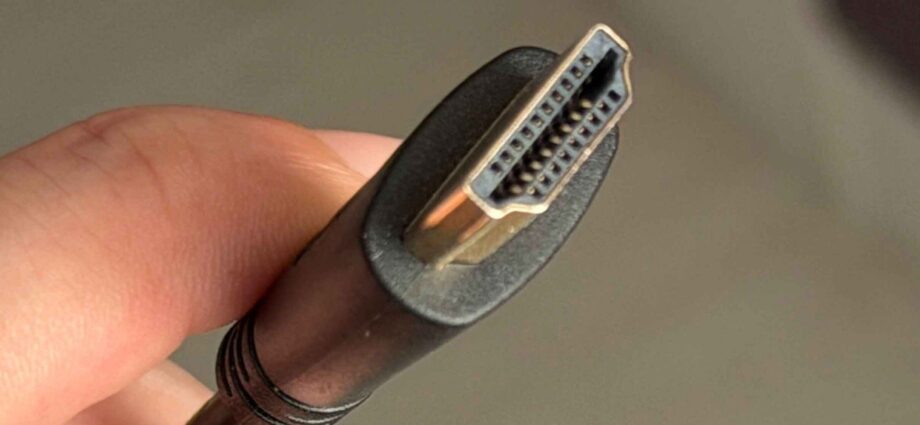

Jonathon Jachura is a mechanical engineer with over 12 years of HVAC industry experience who specializes in translating complex home systems into practical advice for everyday homeowners. His background spans technical sales and product management for major manufacturers, combined with hands-on experience as a two-time homeowner who has tackled everything from system installations to troubleshooting repairs. Jon focuses on helping readers make confident decisions about their homes through clear, actionable guidance that saves both time and money.
Dark HDR scenes on my Samsung Frame TV started showing bands of color where smooth gradients should’ve been. Its a classic sign of a bandwidth issue, or so I assumed. I ordered a new certified cable, swapped it in two days later, and got the exact same banding. The fix turned out to be four menus deep on the TV — nothing to do with the cable at all. Once I knew the name, I started spotting the same bottleneck on my TCL Roku TV and Hisense Canvas. HDMI hides more capability than most setups ever touch, but most TVs ship with ports configured to defeat that capability out of the box. The cable doesn’t always deserve the blame.
The cable is usually the wrong thing to blame
Why a working HDMI signal can still look limited
When a picture problem shows up, the first suspects are always physical — cable, port, streaming box, and anything you can wiggle and unplug. That’s how I diagnosed the banding initially, working outward from the simplest possible cause. Most TVs ship with their HDMI ports running in a legacy mode that handshakes cleanly with older gear. A 2014 Blu-ray player, an old cable box, and a first-gen Fire TV stick — they all plug in and work without errors.
It also caps every port on the TV at HDMI 1.4 bandwidth until you change it. A $50 ultra-certified HDMI cable plugged into a port still running in that mode is no faster than a $5 cable, because the port refuses to negotiate any higher than the setting allows. That’s the part no one mentions when you’re checking out with the new cable in your cart.
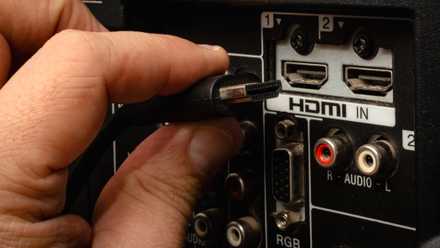
The setting goes by seven different names
One feature, completely different labels per brand
The setting controls whether an HDMI input runs at HDMI 1.4 bandwidth or opens up to the port’s actual rated speed. It is the same toggle, same effect, but every brand calls it something different. On my Samsung Frame TVs, it’s labeled Input Signal Plus and lives under Settings > General > External Device Manager. LG models bury it under Picture Settings as HDMI Ultra HD Deep Color. Sony’s Bravia TVs use HDMI signal format, with Standard and Enhanced modes. TCL Roku models call it HDMI Mode 2.0. Hisense uses a similar HDMI 2.0 Format label.
The naming chaos is the main reason this setting stays untouched on so many TVs. You can’t search for one term and find it across brands. Each input also gets its own toggle. I flipped Input Signal Plus on for HDMI 2 first, where my Apple TV was running, and HDMI 1 stayed in legacy mode until I went back and did it manually. The fix takes thirty seconds per input. Finding the fix the first time can eat half an hour.
What standard mode is actually capping
The bandwidth ceiling no cable can clear

The gap matters when you put numbers on it. Legacy mode runs at HDMI 1.4 speeds, around 10.2 Gbps — fine for 4K at 30 Hz or 1080p at 120 Hz, but a hard ceiling for anything more demanding. To push 4K at 60 Hz with HDR and 4:4:4 chroma the way the source intends, the port needs to be running at HDMI 2.0 speeds (18 Gbps) at minimum. Newer panels chasing 4K/120, 8K, or Dolby Vision above 60 Hz need HDMI 2.1’s 48 Gbps to even handshake properly.
Standard mode pins every input to that 10.2 Gbps ceiling, no matter the panel. A 4K HDR signal hitting that wall doesn’t just stop — it gets compressed and converted to something the port can carry. What comes out the other end is a softer image, flatter contrast, and color that drifts further from the source, the higher the original signal was. I’d been watching a version of this on my desk for years without recognizing it. Going from four 1080p monitors to two 4K panels made the difference impossible to miss. The TV had been doing the same thing, just quieter.
How to tell the setting was the bottleneck
The signs that show up the moment you flip it on

The change is usually immediate. HDR content that previously played as a flatter SDR signal kicks into proper HDR within a second or two of switching back to the source. The TV’s information overlay — the one that shows current signal specs when you press the Info button — finally reports the right resolution and refresh rate combination. On the Frame TV, the banding I’d blamed on the cable was just gone.
Game consoles handle the downgrade in silence. Plug a PS5 into a legacy-mode port, and it’ll quietly drop to 1080p or run 4K at 30 Hz, with no warning on screen. The console doesn’t know any better. Switch the input to enhanced mode, and the next reboot brings up VRR, ALLM, and 4K at 120 Hz, none of which requires anything on the console end. The same pattern hit me when my Hisense Canvas’s Ethernet port was capping speeds at 100 Mbps. The panel could handle the signal. The setting was the only thing standing in the way.
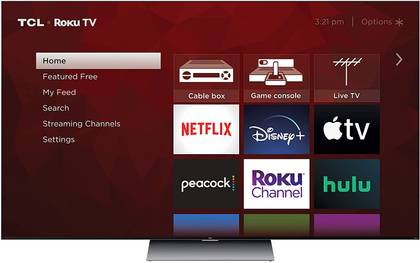
TCL 65R648
- Brand
-
TCL
- Display Size
-
65-inch
Cables wear out. Ports fail. Streaming boxes drop signals. But on a modern TV, the most common bandwidth bottleneck is a setting that’s been sitting in the menu since the day you unboxed it. Walk through every HDMI input before assuming the cable is the issue — they’re configured independently on most sets, and the input you use most might be the only one that needs the fix. The change costs nothing, takes less time than ordering a replacement cable, and reveals whether the hardware was ever the problem to begin with. Mine wasn’t.
